
Open the Ingredients tab
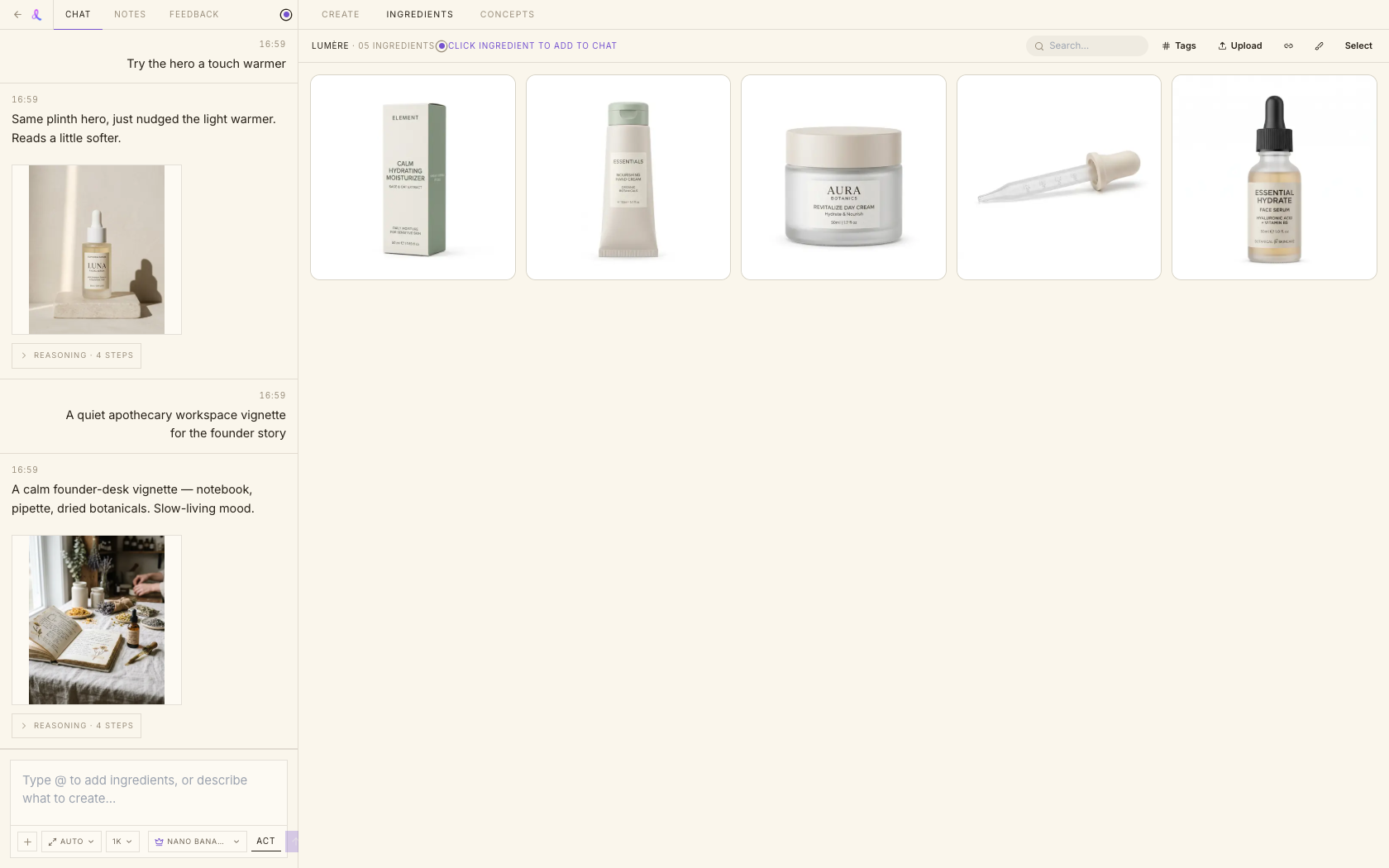
In any campaign workspace, switch to the Ingredients tab. It's brand-wide — everything here belongs to the brand named in the header, ready for any campaign under it.
Ingredients · Your brand's asset library
A per-brand library of the products, logos, and references Awa actually uses — upload them, import from a URL, or draw your own, then drop them into any prompt with @.
How it works
A real product photo beats a paragraph of description. The Ingredients tab is where your brand's source assets live — ready to attach to any shot.
In any campaign workspace, switch to the Ingredients tab. It's brand-wide — everything here belongs to the brand named in the header, ready for any campaign under it.
Drag files anywhere onto the tab, or use Upload. Paste a link to import from a URL, Shopify, or Pinterest. Or hit Draw to sketch a new ingredient on a focused canvas and save it.
Tags are yours to manage. Use the # Tags toggle to reveal a frequency-sorted chip strip and narrow the grid, or search by name. Need help? AI analyze tags a selection for you.
In the chat composer, type @ (or use the plus button) to attach an ingredient to your message. Awa builds the shot around exactly the assets you pick — up to 10 per message.
Open an ingredient's detail drawer and choose Open Prep to crop, remove the background, or upscale. Apply it and Save as new — your original source stays untouched.
One brand-wide library, gathered however suits you, and always a chip away from the prompt.
Keep exploring
Awa is the conversational AI creative director inside every campaign — she writes the prompts, runs the shoot, critiques the results, and remembers your brand, so you direct in plain English.
Learn moreA quick crop-and-enhance station for your product shots — frame it right, sharpen and clean it up, then save it back as an ingredient Awa can build from.
Learn moreStop describing your product. Upload it, draw it, or import it — then attach it and let Awa shoot.